Mastering the Scribble Creator Photoshop Action for Unique Visuals
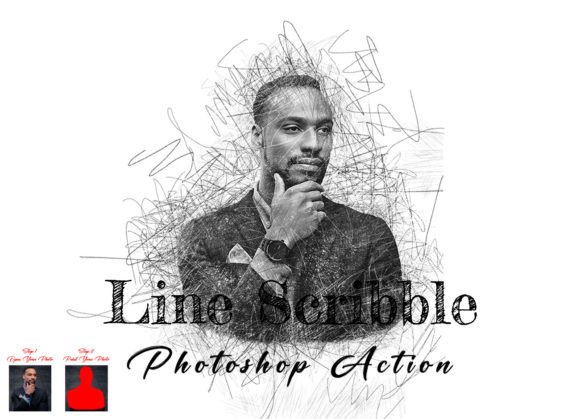
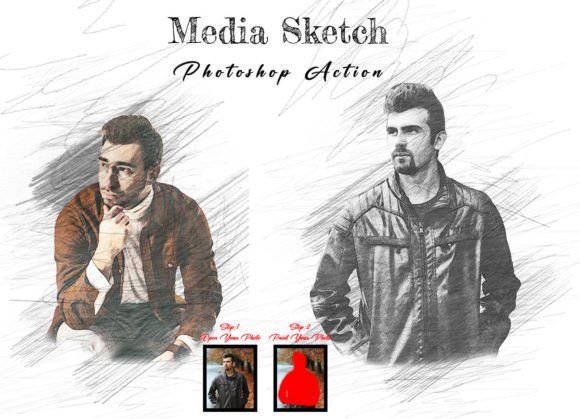
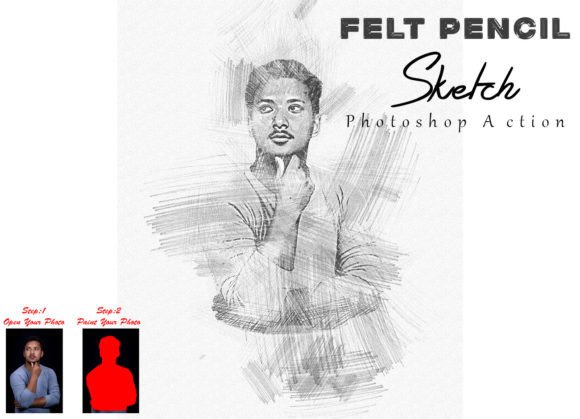
In the crowded digital landscape, standing out requires more than just high-resolution photography; it demands a distinct artistic signature. This is where the Scribble Creator Photoshop Action becomes an invaluable tool for photographers, graphic designers, and content creators. By transforming standard images into hand-drawn, sketch-like masterpieces, this automation tool offers a quick pathway to unique aesthetics. However, like any powerful software utility, its effectiveness relies entirely on how well you understand its mechanics. Many users rush into applying these effects without proper preparation, leading to muddy results or technical errors that waste valuable editing time.
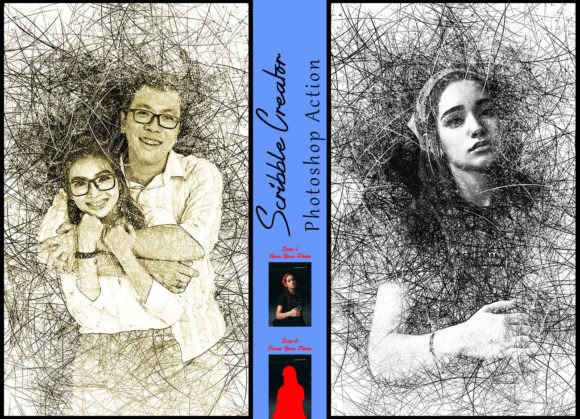
The appeal of the Scribble Creator lies in its ability to enhance images with beautiful, organic textures that mimic traditional media. It adds depth and character, turning a flat photograph into a piece of art that captures attention. The set typically includes ten different color options, allowing for diverse creative expressions that can suit various branding needs or personal styles. Yet, achieving that "stunning" look described in promotional materials is not automatic. It requires a deliberate workflow and an understanding of the specific constraints within Adobe Photoshop.
Avoiding the Resolution Trap
One of the most common mistakes beginners make is ignoring image dimensions before running the action. Photoshop actions are often recorded at specific resolutions, and deviating from these parameters can cause the effect to look pixelated, overly dense, or strangely sparse. For the Scribble Creator Photoshop Action to function correctly, you must adhere to strict resizing protocols.
Before you even think about clicking play, you need to resize your image. Select the crop tool and look at the top menu bar where you will see three blank boxes labeled W (Width), H (Height), and Reso (Resolution). Enter 2000px for Width, 3000px for Height, and set the Resolution to 72. Press enter to apply these changes. Skipping this step is a frequent source of frustration. If your image is too large, the scribble effect may become so fine that it disappears on screen; if it is too small, the lines will look blocky and unrefined. Taking thirty seconds to resize ensures the algorithm distributes the brush strokes evenly across the canvas.
The Critical Importance of Layer Management
Another overlooked detail that ruins many attempts is improper layer handling. Photoshop actions rely on specific layer names and structures to execute commands. A frequent error is attempting to run the action on a locked background layer or failing to create the necessary input layers. To avoid this, always start by opening your photo and creating a new layer. Crucially, you must rename this layer to "paint" in lowercase letters. This naming convention is not arbitrary; the action script looks for this exact label to identify where your manual input begins and ends.
Once the "paint" layer is created, select a brush from the pre-loaded set included with the action. Paint over the areas of the image you want to emphasize with the scribble effect. You do not need to be perfect here; the action will interpret your broad strokes. After painting, close the eye icon on the paint layer to hide it, but keep the layer selected. Only then should you click the play button on the action panel. Failing to hide the layer or misnaming it will result in an error message or a completely blank output, forcing you to undo and restart the process.
Color Settings and Foreground Basics
Technical precision extends beyond layers and resolution. The Scribble Creator Photoshop Action depends heavily on your current foreground and background colors. A subtle but critical instruction is to ensure your foreground color is set to white and your background color is set to black before starting. Many designers work with custom palettes and forget to reset these defaults. If your foreground is set to a bright red or blue, the action may generate unexpected color casts or fail to create the necessary contrast masks.
This step is simple but easily forgotten in the flow of creative work. Make it a habit to press the "D" key on your keyboard to reset colors to default black and white, then "X" to swap them if necessary, ensuring white is in the foreground. This small check prevents hours of troubleshooting why the effect looks washed out or inverted.
Compatibility and Software Requirements
Before purchasing or downloading, it is essential to verify software compatibility. The Scribble Creator Photoshop Action has been tested and confirmed working on the English version of Photoshop CC2022. It also supports a wide range of previous versions, including CS6, CC2014, CC2015, CC2015.5, CC2016, CC2017, CC2018, CC2019, CC2020, and CC2021. However, users should note that non-English versions of Photoshop may encounter script errors due to differences in menu command translations. Always ensure you are running the English interface to guarantee smooth execution.
The file package typically includes the ATN file (the action itself) and the ABR file (the custom brushes). Both must be loaded correctly. Installing only the action without the corresponding brushes will result in missing tool errors. Take the time to load both files into your Photoshop presets panel before beginning any project.
Making the Right Choice for Your Workflow
When evaluating whether this tool fits your needs, consider the type of work you produce. If you frequently create social media graphics, blog headers, or artistic prints, the ten color options provide enough variety to keep your content fresh. However, remember that this is a starting point, not a final solution. The best results come when you use the action as a base and then tweak opacity, blending modes, or add additional adjustments layers afterward.
Avoid the misconception that one-click solutions replace skill. The Scribble Creator enhances your images, but it does not fix poor composition or bad lighting. Use it to add beauty and uniqueness to already strong photographs. By following the precise instructions regarding resizing, layer naming, and color settings, you transform a potentially frustrating technical hurdle into a seamless part of your creative pipeline. This approach saves time, reduces errors, and ensures that every image you produce maintains a professional, polished look.