Integrating the Media Sketch Photoshop Action into Professional Creative Workflows
In the fast-paced environment of digital design and photography, efficiency is not merely a luxury; it is a structural necessity. Professionals ranging from freelance photographers to marketing agencies constantly seek tools that bridge the gap between raw imagery and polished, artistic output without demanding hours of manual labor. The Media Sketch Photoshop Action emerges as a specialized utility designed to address this specific need. It is not simply a filter but a procedural asset that transforms standard photographs into stylized, sketch-like compositions. By understanding how this tool fits into a broader creative pipeline, users can leverage it to enhance productivity while maintaining high aesthetic standards.
Understanding the Role of Automated Actions in Design
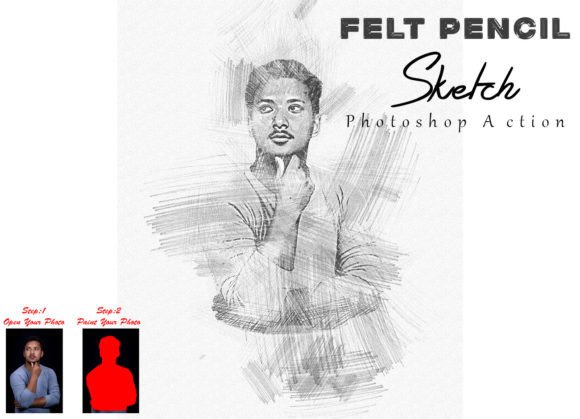
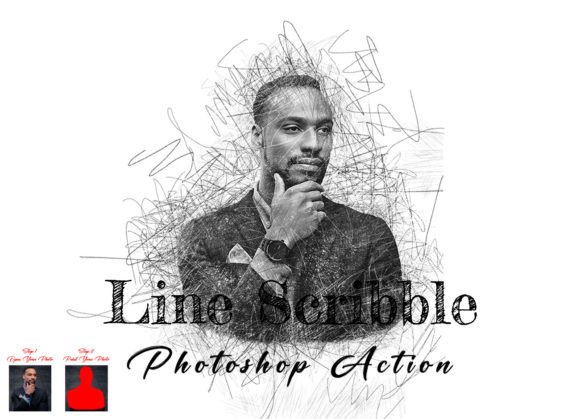
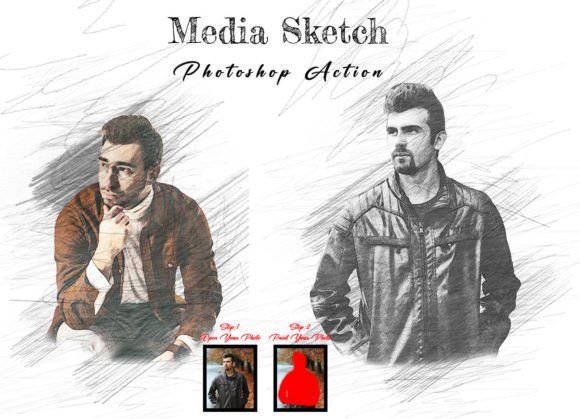
Before diving into the technical specifics, it is crucial to understand where an action like this sits within a professional workflow. In Adobe Photoshop, actions are recorded sequences of commands that automate repetitive tasks. The Media Sketch Photoshop Action is engineered to handle the complex layering, masking, and blending required to create a hand-drawn or media-sketch effect. Instead of manually adjusting brush strokes, opacity levels, and blend modes for every single image, designers can apply a pre-configured sequence that ensures consistency.
This consistency is vital for branding and series-based projects. For instance, a blogger covering a travel series or a marketer creating a cohesive social media campaign needs visual uniformity. Using this action ensures that every image shares the same structural DNA, allowing for minor customizations without losing the overarching theme. It serves as a foundational step in post-production, acting as a bridge between initial photo editing and final graphic design integration.
Preparation and Compatibility: Setting the Stage
Successful implementation of any automated tool begins with proper preparation. One of the most common pitfalls in using Photoshop actions is ignoring software compatibility and file preparation. The Media Sketch Photoshop Action has been rigorously tested to ensure stability across a wide range of Adobe Photoshop versions. It supports English versions of CS6, CC2014, CC2015, CC2015.5, CC2016, CC2017, CC2018, CC2019, CC2020, CC2021, and CC2022. This broad compatibility means that freelancers working on older hardware or agencies using the latest cloud-based suites can both integrate this tool without friction.
However, compatibility is only half the equation. The quality of the output is directly proportional to the quality of the input and the preparatory steps taken by the user. A critical, non-negotiable step in this workflow is image resizing. The action is optimized for specific dimensions to ensure that brush strokes and effects scale correctly. Users must resize their images before applying the action. The recommended process involves selecting the Crop Tool and navigating to the top menu bar where the width, height, and resolution fields are located. Specifically, you should set the width to 3000 pixels, the height to 2000 pixels, and the resolution to 72 DPI. Pressing enter after entering these values ensures the canvas is prepared for the action’s algorithms to function as intended. Skipping this step often results in distorted effects or overly dense brush patterns that detract from the visual appeal.
Execution: The Painting Layer Technique
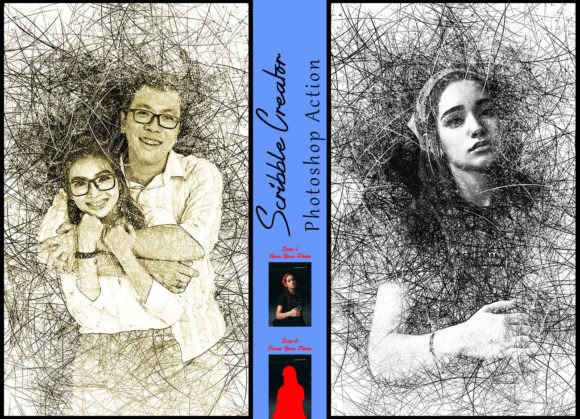
What distinguishes the Media Sketch Photoshop Action from generic filters is its interactive nature. It does not simply apply a static effect; it requires user input to guide the artistic direction. This is achieved through a specific layering technique that puts the creator in control of the final look. After resizing the image, the user must open the photo and create a new layer. This layer must be renamed “paint” in lowercase letters. This naming convention is essential because the action script looks for this specific label to execute subsequent commands.
Once the “paint” layer is created, the user selects a brush and paints over the areas of the image they wish to emphasize or transform. This step allows for selective styling. You might choose to paint over a subject’s face to highlight features while leaving the background less defined, or vice versa. After painting, the user closes the eye icon on the paint layer to hide it but keeps the layer selected. Only then should the action play button be clicked. This method ensures that the sketch effect is generated based on the user’s intentional brush strokes, resulting in a unique and awesome look that feels bespoke rather than automated.
Customization and Color Options
Versatility is a key factor in the longevity of any design tool. The Media Sketch Photoshop Action includes ten distinct color options, providing a palette of moods and tones to suit different project requirements. These options allow users to experiment with various aesthetic directions without starting from scratch. Whether the goal is a monochromatic charcoal feel, a vibrant watercolor impression, or a sepia-toned vintage look, the included color variants offer immediate diversity.
The package is comprehensive, including not just the ATN file for the Photoshop action, but also specialized brushes, a PDF help file, and a video tutorial link. These resources are invaluable for troubleshooting and advanced customization. The inclusion of masking options further enhances control, allowing users to refine edges and blend the sketch effect seamlessly with original photographic elements. This level of organization ensures that layers remain manageable, which is critical when handing off files to clients or collaborating with other designers.
Workflow Integration and Quality Control
Integrating this action into a daily routine requires a shift in mindset from manual execution to strategic oversight. For photographers, this tool can be used during the culling phase to quickly generate preview assets for client approval. For graphic designers, it serves as a texture generator that can be overlaid onto layouts to add depth and organic feel. The high-quality result produced by the action reduces the need for extensive post-touch-up, saving significant time in the long run.
Quality control remains the responsibility of the user. While the action provides a robust framework, the final output depends on the initial image quality and the precision of the painting step. It is advisable to test the action on a few sample images to understand how different lighting conditions and subjects respond to the effect. High-contrast images often yield sharper sketch lines, while softer lighting may produce more subtle, painterly results. Understanding these nuances allows professionals to select the right source images for the best outcomes.
Long-Term Value and Usability
The true value of the Media Sketch Photoshop Action lies in its reusability and ease of customization. Unlike one-off plugins that may become obsolete with software updates, actions are generally forward-compatible and easy to maintain. The organized layer structure means that even months after a project is completed, a designer can reopen the file, adjust the opacity of specific layers, or swap out color options without disrupting the entire composition. This flexibility supports iterative design processes where client feedback may require subtle shifts in tone or style.
Furthermore, the inclusion of a help file and video tutorial lowers the learning curve, making it accessible to hobbyists and beginners while still offering enough depth for seasoned professionals. The ability to work on every photo type, from portraits to landscapes, makes it a versatile addition to any digital asset library. By streamlining the creation of complex artistic effects, this tool empowers creators to focus more on conceptual development and less on technical execution.
In conclusion, the Media Sketch Photoshop Action is more than a simple filter; it is a workflow enhancer that combines automation with creative control. By adhering to the preparation guidelines, utilizing the painting layer technique, and leveraging the included color options, users can consistently produce stunning, unique images. Whether you are a marketer looking to refresh social media content or a photographer aiming to expand your artistic portfolio, integrating this action into your toolkit offers a practical path to higher efficiency and elevated visual quality.