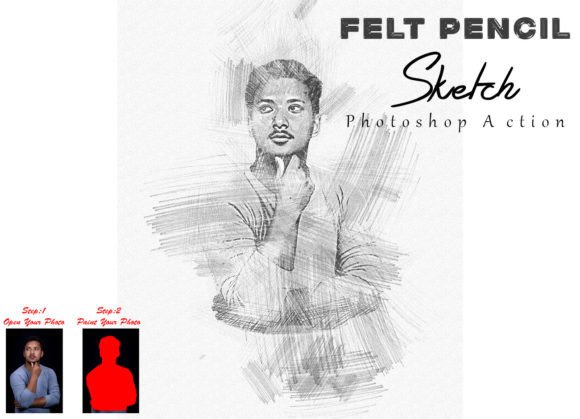
Evaluating the Felt Pencil Sketch Photoshop Action for Digital Artistry
In the realm of digital photography and graphic design, transforming a standard photograph into a piece of art requires both technical skill and creative tools. One such tool that has gained attention among enthusiasts and professionals alike is the Felt Pencil Sketch Photoshop Action. This automated script is designed to streamline the process of converting images into stylized sketches that mimic the texture and appearance of felt-tip pens or graphite pencils. For photographers and designers looking to expand their portfolio or add unique visual elements to their projects, understanding the capabilities, limitations, and proper usage of this action is essential.
Understanding the Tool and Its Appeal
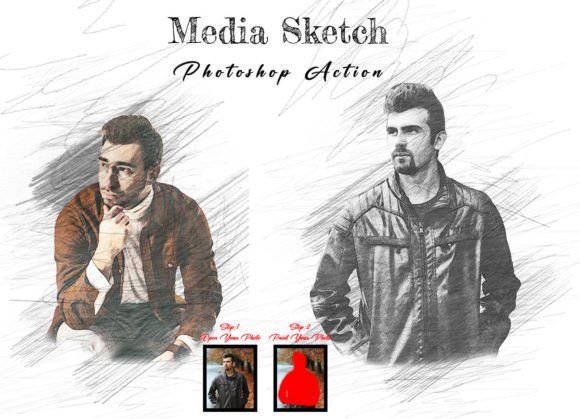
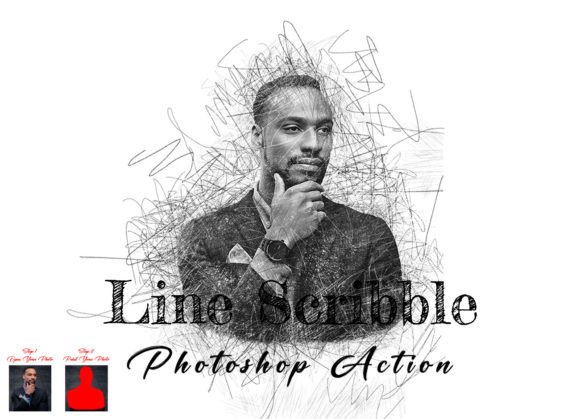
The Felt Pencil Sketch Photoshop Action is essentially a recorded set of commands within Adobe Photoshop that applies a series of filters, adjustments, and layer effects to an image. Rather than manually adjusting levels, applying noise, and masking layers—a process that can take hours—this action automates the workflow in seconds. The primary appeal lies in its ability to enhance images by adding beautiful, textured details that give photos a unique and awesome look. It serves as a bridge between realistic photography and hand-drawn illustration, offering a stylistic middle ground that is often difficult to achieve manually without extensive training in digital painting.
Users are typically drawn to this tool for several reasons. First, it offers consistency. When working on a series of images, such as a wedding album or a brand campaign, maintaining a uniform artistic style is crucial. Second, it provides inspiration. Sometimes, seeing a photo transformed can spark new ideas for composition or editing that the original image did not suggest. Finally, it is accessible. Even users with intermediate Photoshop skills can achieve professional-looking results, provided they follow the specific instructions required for the action to function correctly.
Technical Requirements and Compatibility
Before integrating this tool into your workflow, it is important to verify compatibility. The Felt Pencil Sketch Photoshop Action has been tested and confirmed to work on the English version of Photoshop CC2022. However, its utility extends to a broader range of software versions, including CS6, CC2014, CC2015, CC2015.5, CC2016, CC2017, CC2018, CC2019, CC2020, and CC2021. Users must ensure they are running an English version of the software, as actions often rely on specific menu names and layer terminology that may differ in localized versions of Photoshop.
The package typically includes the ATN file, which is the core Photoshop Action file, along with custom brushes. These brushes are integral to the final output, as they define the texture and stroke quality of the sketch. Without loading these brushes, the action may not produce the intended aesthetic, resulting in a flat or generic filter effect rather than a nuanced artistic rendering.
Step-by-Step Implementation for Optimal Results
To achieve the best results with the Felt Pencil Sketch Photoshop Action, precision in preparation is key. The tool is not entirely "one-click"; it requires user input to guide the artistic direction. The following steps outline the critical procedure:
- Image Preparation: Start by resizing your image. Select the Crop Tool and locate the width, height, and resolution fields in the top menu bar. Enter a width of 2000px, a height of 3000px, and a resolution of 72 DPI. Press enter to apply these changes. This standardization ensures that the filters and brush sizes scale correctly relative to the image dimensions.
- Layer Setup: Open your photo and create a new layer. Rename this layer “paint” in lowercase letters. This naming convention is often hardcoded into the action’s logic, so deviation may cause errors. Using a brush from the loaded set, paint over the areas of the image you wish to emphasize or transform. This step allows you to control where the sketch effect is most prominent.
- Execution: Hide the visibility of the “paint” layer by clicking the eye icon, but keep the layer selected. Before playing the action, ensure your foreground color is set to white and the background color is set to black. This contrast is vital for the blending modes used in the action. Finally, select the appropriate brush from the pre-loaded set and click the play button on the action panel.
The action includes ten color options, allowing users to experiment with different tonal moods. When executed correctly, these options can reveal details that were previously unviewed or subtle in the original photograph, adding depth and character to the final piece.
Benefits and Tradeoffs
The primary benefit of using the Felt Pencil Sketch Photoshop Action is efficiency. It reduces a complex multi-step process into a manageable workflow, freeing up time for other creative tasks. Additionally, the inclusion of multiple color options provides versatility, enabling designers to match the sketch style to various branding guidelines or artistic themes.
However, there are tradeoffs to consider. Automated actions lack the nuanced decision-making of a human artist. While the result is aesthetically pleasing, it may lack the intentional imperfections and expressive strokes of a genuine hand-drawn sketch. Furthermore, the requirement for specific setup steps—such as exact layer naming and color settings—means that the learning curve is steeper than typical one-click filters. Users who skip these steps will likely encounter errors or unsatisfactory results.
When to Use This Action Versus Alternatives
This tool is a strong fit for photographers and designers who need to produce high volumes of stylized images quickly, such as for social media content, blog headers, or preliminary concept art. It is also ideal for those who want to experiment with artistic styles without committing to learning digital painting from scratch.
Conversely, if the goal is to create a highly customized, fine-art piece where every stroke matters, manual digital painting or hiring a professional illustrator may be a better alternative. Similarly, for users who require full control over every aspect of the texture and lighting, building custom actions or using advanced plug-ins might offer more flexibility than a pre-set action.
In conclusion, the Felt Pencil Sketch Photoshop Action is a valuable asset for those looking to enhance their images with a distinct artistic flair. By understanding its technical requirements and following the prescribed workflow, users can leverage this tool to create stunning, unique visuals efficiently. It represents a practical balance between automation and creativity, suitable for a wide range of photographic and design applications.